
Returns and cancellations of fiscal receipts - the difference and how to do them
When to issue a return and when to cancel, why a fiscal receipt is never deleted, how the new receipt is linked to the original and what the whole process looks like in ProBooks SEF.
Updated · 3 min read

In short: A fiscal receipt is never deleted. A return is used when the customer brings goods back - a return receipt is created only for the items being returned. A cancellation is used when a receipt was issued in error - a cancellation receipt is created for the whole receipt, with a mandatory reason. In both cases the new receipt is linked to the original and sent to the tax authority (ATK).
Why you can’t delete a receipt
Once a receipt is signed and sent to ATK, it is part of the tax record. If it could be deleted, the receipt numbering would have gaps and ATK would have no way to audit it. That’s why every correction is made with a new receipt that states clearly what it corrects and why.
Return or cancellation? The difference in one table
| Return | Cancellation | |
|---|---|---|
| When | The customer returns the goods | The receipt was issued in error |
| Which items | Only those being returned | The whole receipt |
| Reason | Optional | Mandatory |
| New receipt | KUPON KTHIMI (Return receipt) | KUPON ANULIMI (Cancellation receipt) |
| Link | To the original receipt | To the original receipt |
| Stock | Items go back into stock | The sale is reversed in full |
How to process a return - step by step
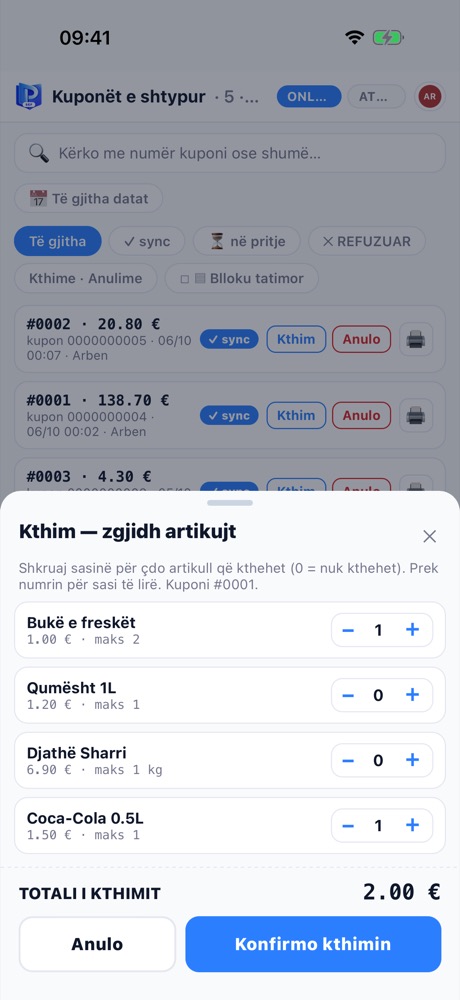
The Kthim - zgjidh artikujt (Return - select items) sheet: quantities and refund total.
- Open the Kuponët (Receipts) tab and find the receipt - by number or by amount.
- Tap Kthim (Return).
- On the Kthim - zgjidh artikujt sheet, choose the quantity being returned for each item. The till won’t let you return more than was sold.
- Check the TOTALI I KTHIMIT (Refund total) and tap Konfirmo kthimin (Confirm return).
- The return receipt is issued, linked to the original, and the customer gets their money back.
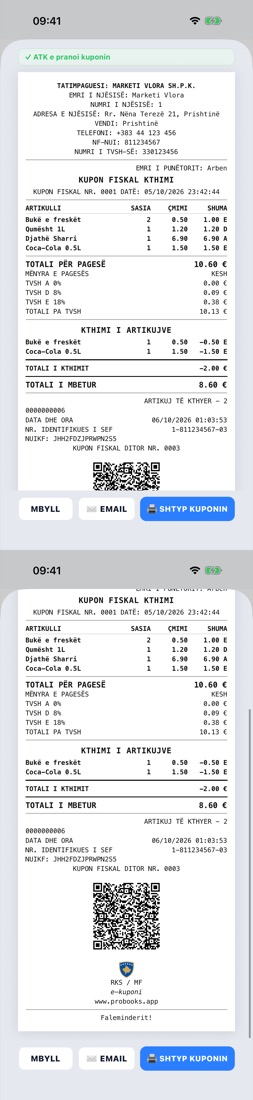
The return receipt carries a reference to the original receipt.
How to cancel a receipt - step by step
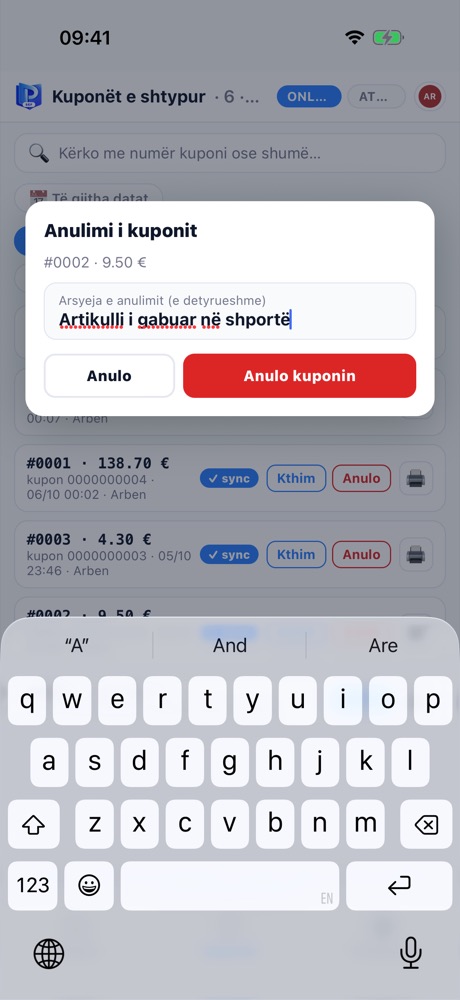
Cancellation always requires a reason.
- In Kuponët, find the receipt that was issued in error.
- Tap Anulo (Cancel).
- Enter the reason - e.g. Artikulli i gabuar në shportë (Wrong item in the cart). Without a reason, the button stays disabled.
- Tap Anulo kuponin (Cancel receipt). The cancellation receipt is issued and the original is marked as cancelled.
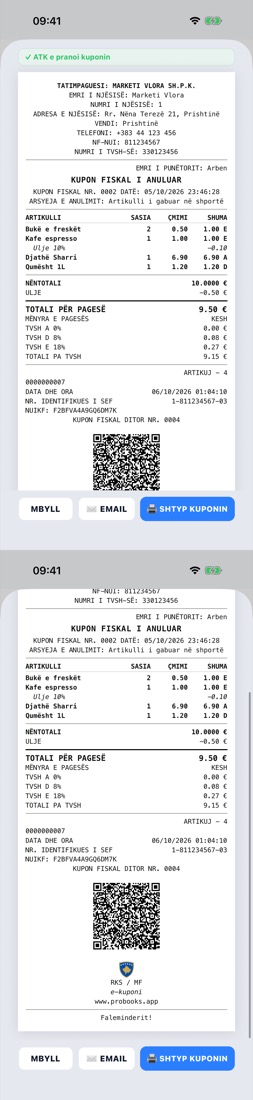
The cancellation receipt with the reason and a reference to the original.
Who can do it
Returns and cancellations are sensitive actions. In ProBooks you can restrict them to managers only: the cashier starts the action and the manager approves it with their own PIN. Every action is recorded in the audit log - who, when and why.
What happens in accounting
- A return reduces sales revenue and output VAT, and puts the items back into stock.
- A cancellation fully reverses the effect of the original receipt.
- Both appear in the sales ledger and on the VAT return - with no manual adjustments by anyone.
Common mistakes
- Cancelling instead of returning. If the customer returns just one item, issue a return, not a cancellation of the whole receipt.
- Returns without the original receipt. Look up the receipt by number or amount - ProBooks always links the return to the original.
- Vague reasons. Write reasons you’ll still understand six months from now, when the audit comes.
Frequently asked questions
Can I process a return offline? Yes. The return receipt is signed and stored like any other receipt, and sent when the connection returns.
Can I refund by card if the customer paid in cash? That depends on your business’s policy; the till records the refund method on the receipt.
Where can I see all returns and cancellations? In the Kuponët tab, using the Kthime · Anulime (Returns · Cancellations) filter, and in the ProBooks web reports.