
How fiscalization with SEF works in Kosovo - a complete guide
What SEF is, how it differs from a fiscal device, what a fiscal receipt must contain, what happens when the internet goes down, and how to fiscalize your business step by step with ProBooks.
Updated · 6 min read

In short: SEF (Electronic Fiscal Software) is till software that fiscalizes receipts without a physical device with fiscal memory. Every receipt is digitally signed on the till, gets a verification QR code and is sent to the Tax Administration of Kosovo (ATK) in real time. When there is no internet, the receipt is stored and sent automatically as soon as the connection returns. In this guide we explain every step, with real screens from ProBooks SEF.
Why this matters for your business
For many businesses, fiscalization used to mean an expensive device on the counter, a technician for every change, and daily reports someone had to copy into the books. SEF changes that: the till becomes software that runs on devices you already own - phone, tablet, Windows or Mac computer - and the data goes straight to ATK and to your accounting.
In practice, that means three things:
- Lower upfront costs. You don’t need a fiscal device for every point of sale.
- More flexibility. A waiter on the terrace or a sales rep in the field can issue a receipt from a phone.
- Less manual work. Sales are no longer re-entered at the end of the month - they are already in the books.
PEF and SEF: two ways to fiscalize
The ATK specification recognises two main types of fiscal till:
| PEF / SF | SEF | |
|---|---|---|
| What it is | Physical fiscal device | Software (a program) |
| Fiscal memory | Yes, in the device | No - the receipt is signed with a private key |
| Where it runs | Only on the fiscal device | On a computer, phone or tablet |
| Reporting | Daily reports from the device | Real-time submission to the ATK system |
| Without internet | Depends on the device | The receipt is stored and sent later |
SEFs are governed by Chapter IV of the ATK specification. ProBooks offers two SEFs: MiniPOS for Windows (for high-volume tills, with barcode scanner and thermal printer) and SEF Mobile for iPhone, Android, iPad and Mac. Who must move to a SEF, and when, under Instruction 01/2026 is covered in the guide to moving to a SEF.
What a fiscal receipt must contain
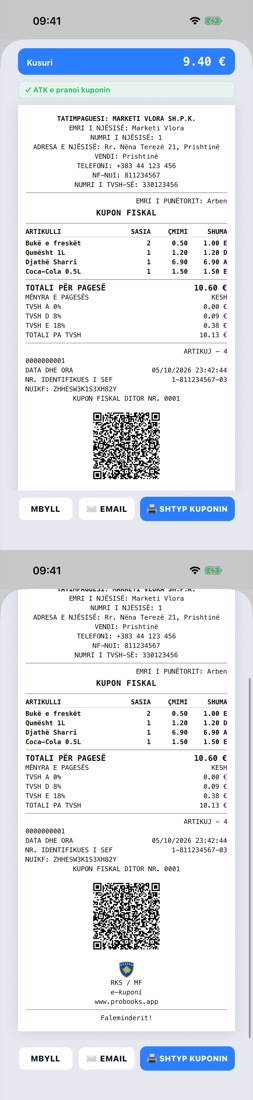
The complete receipt, exactly as it appears on paper and on screen.
A SEF receipt contains, in the order ATK requires:
- business details: taxpayer name, unit name and number, address, NUI (business ID number) and VAT number;
- the name of the employee who issued the receipt;
- items with quantity, price, value and the VAT rate letter (A, C, D or E);
- the total payable, the payment method and the VAT for each rate;
- the total excluding VAT;
- the date and time, the receipt number and the SEF identification number (unit-NUI-till);
- the NUIKF, the unique fiscal receipt code;
- the verification QR code - mandatory even when the sale is made offline;
- the RKS / MF fiscal logo and the text e-kuponi.
ProBooks fills all of this in automatically from your company and item data. The cashier just taps the items and presses Mbyll shitjen (Close sale).
What a sale looks like at the till
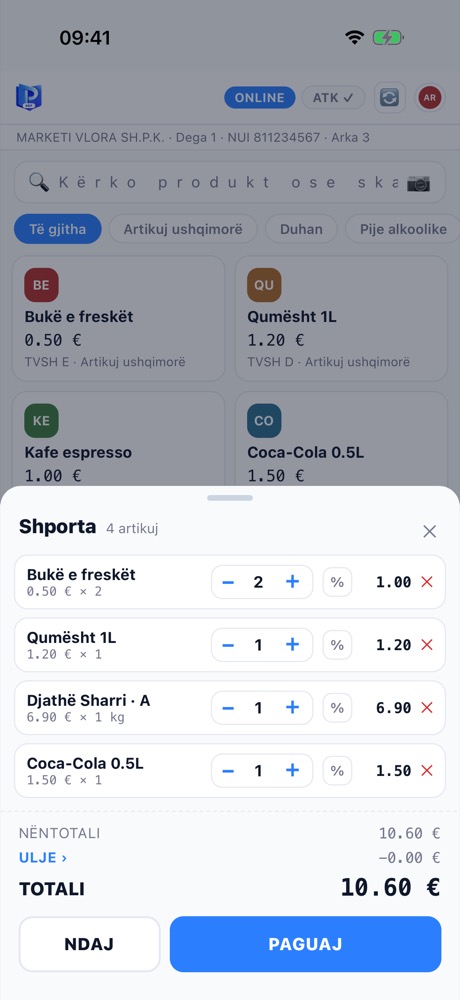
The cart: quantity, per-item discount and total.
- The cashier logs in with their own PIN - every receipt carries their name.
- They tap items or scan them by barcode; quantity is changed with − and +.
- They press PAGUAJ (Pay) and choose cash, card or split payment.
- For cash, they enter the amount received and the till calculates the change.
- They press MBYLL SHITJEN (Close sale) - the receipt is signed, sent to ATK and shown on screen, printed or emailed.
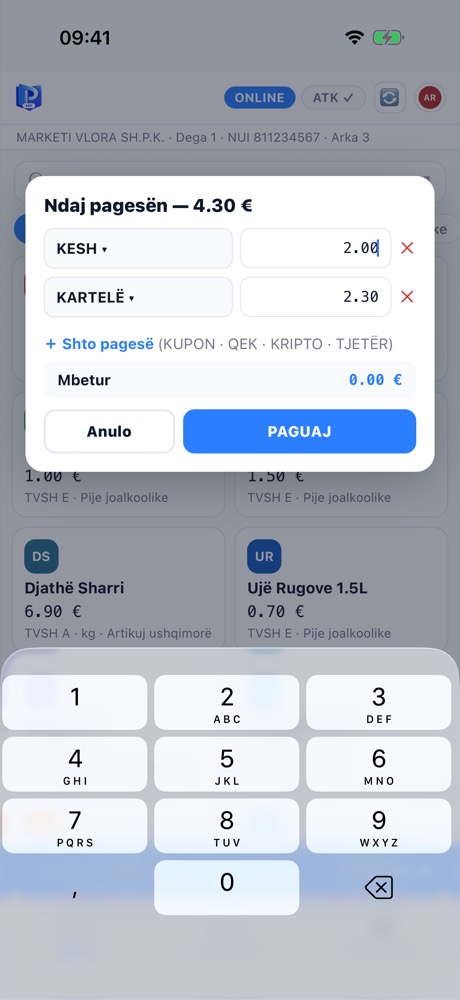
Split payment: part in cash, the rest by card.
What happens when the internet goes down
A good SEF never blocks the sale. In ProBooks:
- The receipt is signed on the device and gets its QR code as usual.
- It is stored securely - it can no longer be changed.
- The till shows a red banner saying it is working offline, how many receipts are pending and how much time is left in the 48-hour window.
- When the internet returns, the receipts are sent to ATK automatically, oldest first.
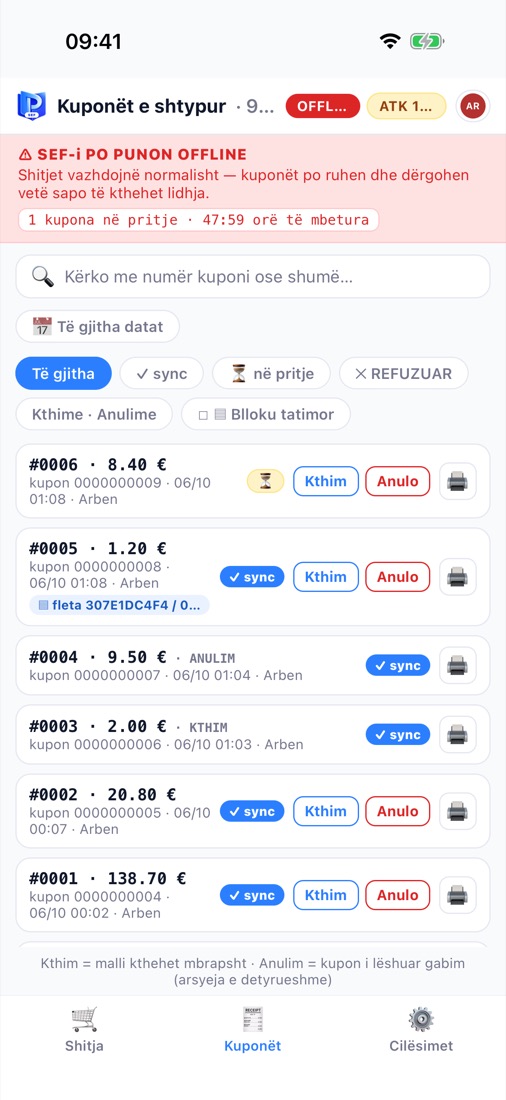
Receipts waiting to be sent, with the hours left in the 48-hour window.
For more detail, read the guide Fiscal till without internet.
Cancellations and returns
An issued receipt is never deleted. To correct it:
- Cancellation creates a cancellation receipt linked to the original, with a mandatory reason - for a receipt issued in error.
- Return creates a return receipt only for the items being returned - when the customer brings goods back.
Both can require manager approval by PIN. You’ll find the full explanation in Returns and cancellations of fiscal receipts.
How to fiscalize your business with ProBooks - step by step
- Company details. Enter your NUI, address and VAT status.
- Branches / units. Add the business units where you will sell, with their unit numbers.
- Fiscalization application. From the Fiskalizimi (ATK) page, follow the three steps - application, POS request and registration - and track the status of each. Before this step you need the Unique Fiscalization Code from EDI.
- Tills. Register your tills (POS) and pair the app using the one-time code from ProBooks web.
- Employees. Add cashiers with a PIN and a role - cashier or manager.
- Items. Categories, units and VAT rates (0%, 8%, 18%, exempt). Mark which items appear on the till.
From then on, every sale is fiscalized and recorded automatically in stock and in your accounts. If you like, we can go through these steps together during the initial setup.
Common mistakes SEF helps you avoid
- Receipts without a QR code when the internet drops. With ProBooks SEF the QR code always prints, because the receipt is signed on the device.
- Wrong time on the computer. The till checks the fiscal clock and warns you, without blocking the sale.
- Returns not linked to the original receipt. ProBooks always links the return to the first receipt.
- Sales that never reach the books. Every receipt is posted to accounting automatically - no export/import.
Frequently asked questions
Do I need a fiscal device if I use SEF? No. SEF is the fiscal software itself. All you need is a computer, phone or tablet - plus a thermal printer if you want printed receipts.
Can I have several tills? Yes. Each till has its own SEF identifier, while stock and reports are shared.
What if the device’s clock is wrong? ProBooks checks the fiscal clock and warns you, without blocking the sale.
How long does setup take? It depends on the number of items and tills. For a shop with one till, usually within a day - contact us and we’ll give you an exact answer for your business.
See also: SEF fiscal till in Kosovo · Electronic Fiscal Software (SEF): what it is and how to get it